
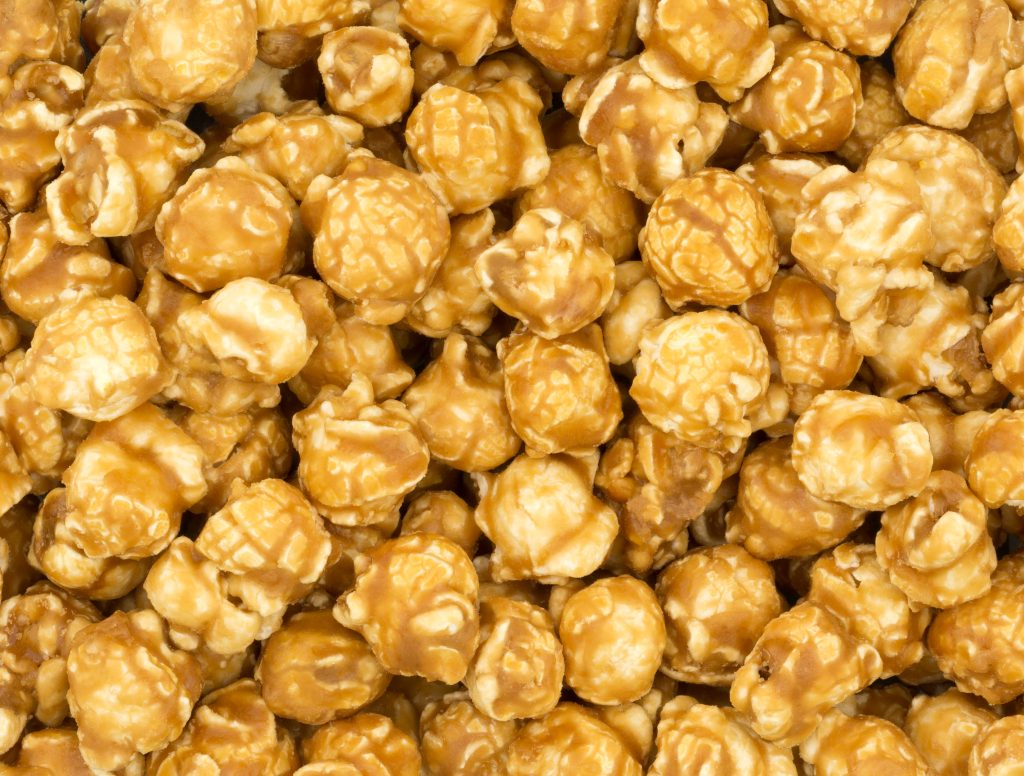
The Target: A Close-Up of Caramel Corn
If you found yourself feeling inexplicably hungry or craving a snack during your session, your subconscious was right on the money! The target is a vibrant, macro photograph of a dense pile of caramel corn.
What You Might Have Experienced:
Visuals & Shapes: You may have sketched repeating, lumpy, or irregular spherical shapes clustered tightly together. You might have perceived a chaotic, overlapping pattern with no distinct center. Colors that frequently bleed through for this kind of target are rich yellows, oranges, golden browns, and a glossy, amber-like shininess.
Sensory Data: Did you get impressions of “sticky,” “crunchy,” “hard,” or “sweet”? A strong sense of something coated, glazed, or hardened on the outside but light on the inside is highly relevant here. You might have also caught a phantom whiff of a buttery, salty, or burnt sugar aroma.
Concepts & Energetics: Sometimes viewers pick up on the energetic history of an object rather than its current state. You might have sensed intense heat, pressure, popping, or explosive expansion (the popcorn process). Alternatively, you could have tapped into the conceptual vibe of the object—ideas of snacks, treats, carnivals, or movie theaters.
If your session notes describe a chaotic jumble of sticky, golden, miniature brains, give yourself top marks! Whether you nailed the exact food item, sensed the biological-turned-manufactured nature of the target, or simply picked up on the sweet and crunchy textures, fantastic work. Now, it might be time to go treat yourself to a well-earned snack!
To ensure your submission is processed quickly, please merge your photos or documents into a single PDF file before uploading. Here are the easiest ways to do it:
If you already have multiple PDF files on your computer: